


Introduction to the 8851 phones
Here's a short guide to help you familiarize yourself with one of the new phones provided by UBIK, the Cisco 8851. If you use phones from another brand (UBIK is compatible with most SIP phones), please refer to the manufacturer's user guide.
For Cisco 6800 series models, refer to this guide.
If you are using older Cisco SPA500 series models, refer to this guide.
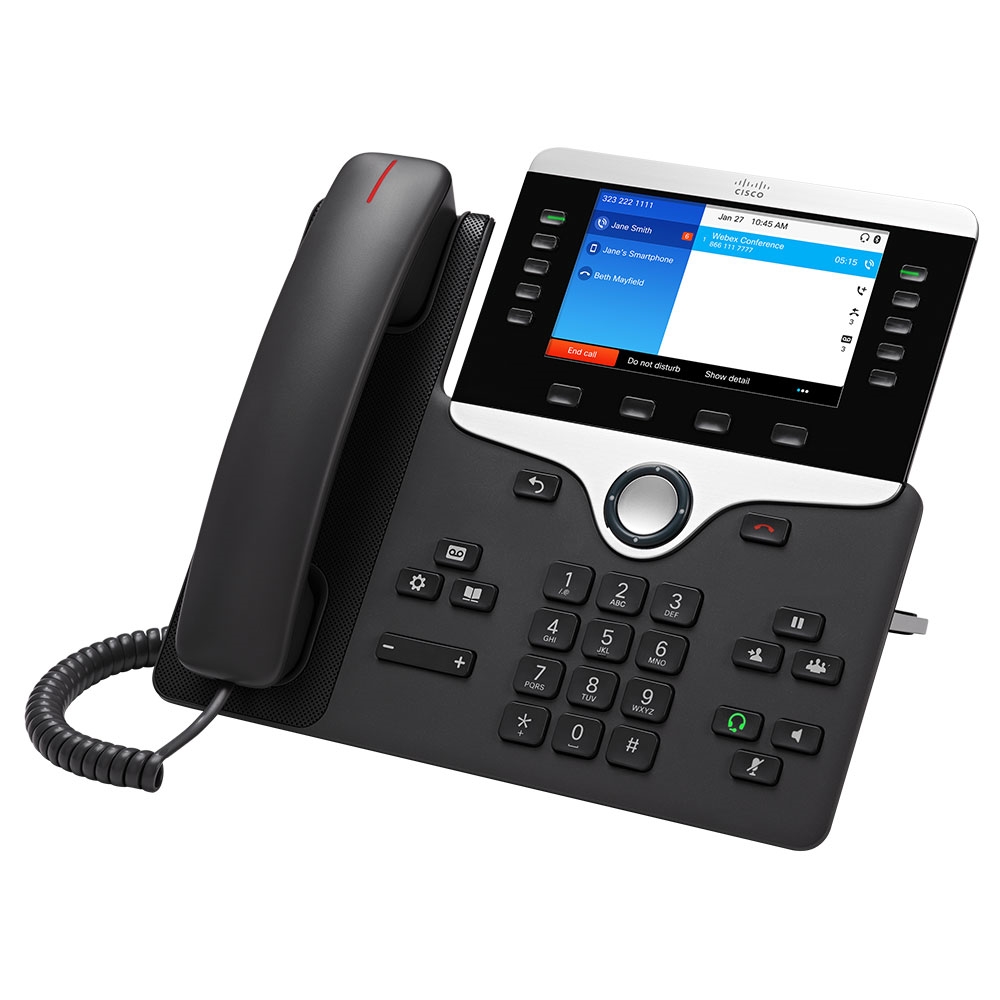
Cisco 8851 looking sharp.
The Cisco 8851 is one of two new Cisco phones offered by UBIK. Tested and approved by UBIK technicians, these phones are modern, safe and reliable at a reasonable price.
The phone comes with a 5-inch high-resolution (800x480) wide-screen VGA backlit color display, a USB port, and five programmable line keys. You can add up to two key expansion modules for up to 72 additional function / line keys.
In addition, the phone supports a built-in Gigabit Ethernet switch for connecting your computer.
Introduction to phone lines and buttons
The full user guide is available here.
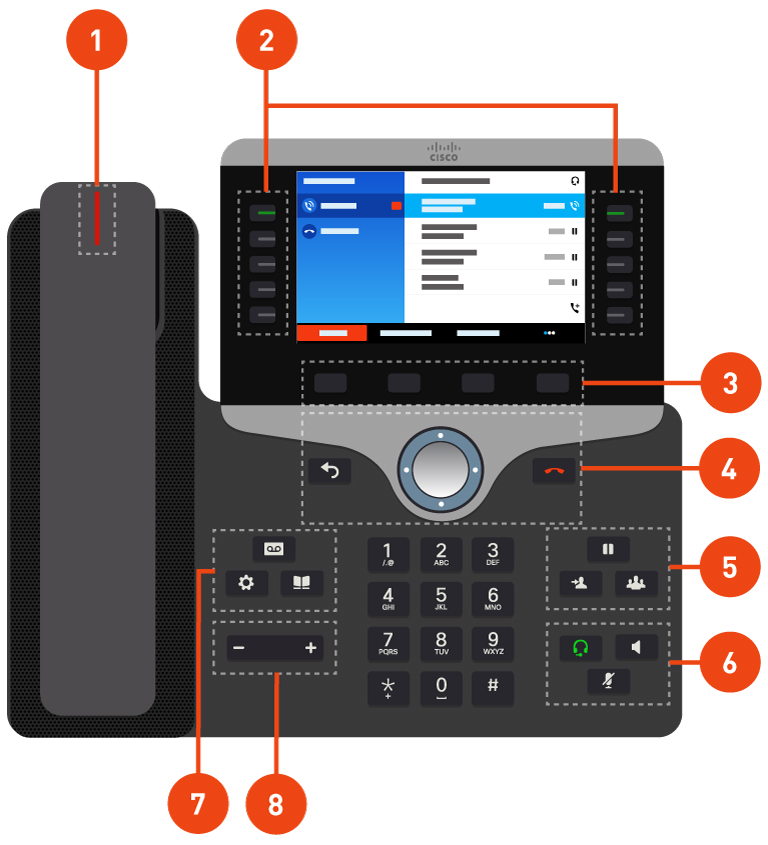
| N˚ | Feature | Description |
| 1 | Handset and Handset light strip | Indicates whether you have an incoming call (flashing red) or a new voice message (steady red). |
| 2 | Programmable feature buttons and line buttons |
 Access your phone lines, features, and call sessions. When adding features to the phone line keys, you are limited by the number of line keys available. You cannot add more features than the number of line keys on your phone. Access your phone lines, features, and call sessions. When adding features to the phone line keys, you are limited by the number of line keys available. You cannot add more features than the number of line keys on your phone.
|
| 3 | Softkey buttons |
 Access to functions and services. Access to functions and services. |
| 4 | Back, Navigation cluster, and Release |
Back Return to the previous screen or menu. Return to the previous screen or menu. Navigation cluster  Navigation ring and Select button—Scroll through menus, highlight items and select the highlighted item. Navigation ring and Select button—Scroll through menus, highlight items and select the highlighted item. Release  End a connected call or session. End a connected call or session. |
| 5 | Hold/Resume, Conference, and Transfer |
Hold/Resume Place an active call on hold and resume the held call. Place an active call on hold and resume the held call.Conference  Create a conference call. Create a conference call.Transfer  Transfer a call. Transfer a call. |
| 6 | Speakerphone, Mute, and Headset |
Speakerphone Toggle the speakerphone on or off. When the speakerphone is on, the button is lit. Toggle the speakerphone on or off. When the speakerphone is on, the button is lit.Mute  Toggle the microphone on or off. When the microphone is muted, the button is lit. Toggle the microphone on or off. When the microphone is muted, the button is lit.Headset  Toggle the headset on. When the headset is on, the button is lit. To leave headset mode, you pick up the handset or select Speakerphone. Toggle the headset on. When the headset is on, the button is lit. To leave headset mode, you pick up the handset or select Speakerphone. |
| 7 | Contacts, Applications, and Messages |
Contacts  Access personal and corporate directories. Access personal and corporate directories.Applications  Access recent calls, user preferences, phone settings, and phone model information. Access recent calls, user preferences, phone settings, and phone model information.Messages  Autodial your voice messaging system. Autodial your voice messaging system. |
| 8 | Volume button |
 Adjust the handset, headset, and speakerphone volume (off hook) and the ringer volume (on hook). Adjust the handset, headset, and speakerphone volume (off hook) and the ringer volume (on hook). |
Phone maintenance
IP phones are electronic devices that should not be exposed to excessive heat, sunlight, cold, or water. To clean your phone, wipe with a damp paper towel. Do not spray or pour cleaning fluid directly on the phone.
Installing your phone
Before you get started
Before installing and connecting your phone, contact your system administrator to confirm that the phone can be installed on your network, read the safety notices and make sure you have all the phone parts and documentation.
Phone connections
Phone connections are shown below.
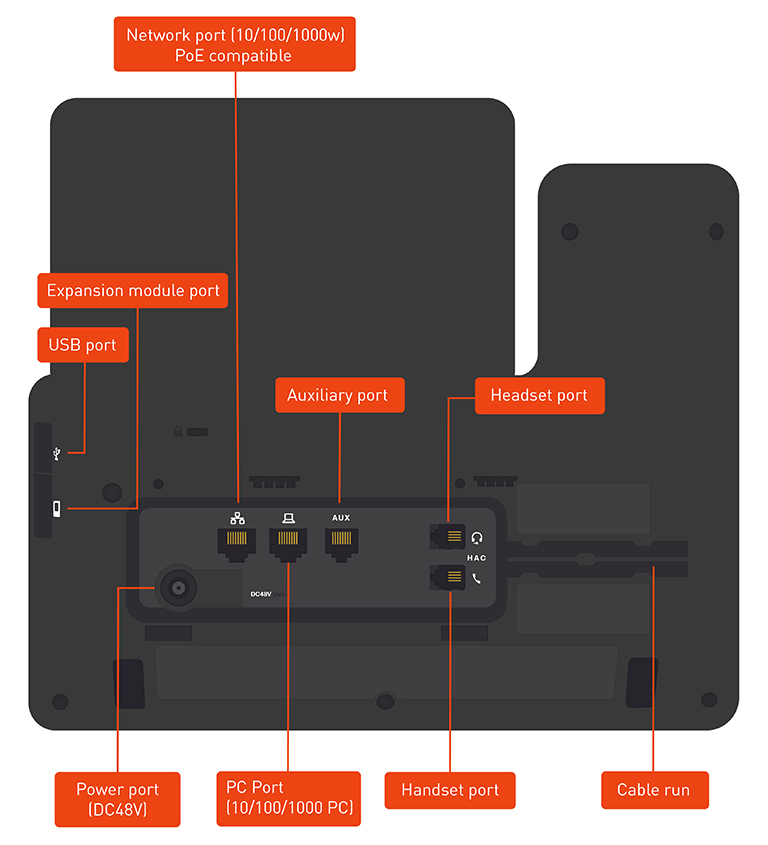
Cisco 8851 connections.
Connecting the handset
Procedure
1. Turn the phone body over to expose the ports on the back of the device. CAUTION: Do not insert a telephone line cord into the auxiliary (AUX) port.
2. Insert the long end of the phone cord into the handset port on the phone body (marked with a phone symbol).
3. Route the telephone cord through the cord run.
4. Insert the other end of the phone cord into the port at the bottom of the handset (not shown).
Connecting the power
If you are using an external power source, insert one end of the power cord into a wall outlet and the other end of the cord in the phone’s power port.
Connecting your phone to the network
Procedure
1. Insert one end of the Ethernet cable into the phone's network port.
2. Insert the other end of the Ethernet cable into the appropriate device on the network, such as a network switch or wall outlet.
Connecting a PC to your phone (optional)
Procedure
1. To provide network access to a PC, connect one end of an Ethernet cable (not provided) to the PC port on the back of the phone body.
2. Connect the other end of the Ethernet cable to the port on your PC.
Phone startup
After receiving power and network connectivity, the phone executes a boot-up sequence.